
Office 365 migration services help businesses move email, files, Teams, users, permissions, and collaboration workflows into Microsoft 365 with less disruption. In this guide, we will walk through what these services include, how the migration works, what can go wrong, and how to choose a provider that keeps downtime under control.
TL;DR
- Office 365 migration is not just email migration. It can include Exchange Online, SharePoint, OneDrive, Teams, users, permissions, identity, DNS, and security settings.
- The right migration method depends on your source environment, data volume, user count, downtime window, and compliance needs.
- Email, file, and Teams migration each carry different risks, so they should be planned and validated separately.
- Minimal downtime comes from discovery, pilot testing, staged execution, DNS planning, rollback paths, and post-migration support.
- Accrets provides Microsoft 365 migration and managed services for businesses that want the project handled as a structured infrastructure change, not a rushed software setup.
What are Office 365 migration services?
Office 365 migration services are professional services that help organizations move business email, files, identities, permissions, Teams workspaces, and collaboration systems into Microsoft 365.
A migration provider usually handles the work your internal team may not have time to manage in detail. That includes discovery, migration planning, tenant setup, identity configuration, email migration, SharePoint and OneDrive migration, Teams migration, DNS cutover, validation, and user support.
The goal is not just to move data into Microsoft 365. The real goal is to make sure people can work normally after the move. Users should be able to sign in, send mail, open shared files, access Teams, join meetings, use mobile devices, and find the content they need.
For businesses evaluating Microsoft 365 as part of a wider enterprise application strategy, Accrets’ enterprise email and Office 365 solution shows how email, collaboration, and managed support can fit together.
Why businesses migrate to Office 365 in the first place
Most organizations migrate to Office 365 because their current setup has become fragmented, expensive to maintain, or difficult to support. On-premise Exchange servers, scattered file shares, legacy email platforms, and disconnected collaboration tools can slow the business down.
Microsoft 365 gives teams a shared platform for email, calendars, file collaboration, video meetings, identity, and security. For remote and hybrid teams, that consistency matters. People should not need five different systems to share a document, join a meeting, or find a project conversation.
The business case is usually about more than productivity. IT teams also want simpler administration, stronger access control, better auditability, and less dependence on aging infrastructure. For companies treating Microsoft 365 as part of a broader modernization program, Accrets’ guide to corporate IT infrastructure in Singapore explains how infrastructure decisions shape long-term operations.
What should you assess before an Office 365 migration?
A migration plan is only as good as the assessment behind it. Before any cutover date is confirmed, the team should know what exists, what matters, what can be cleaned up, and what must not break.
Use this readiness checklist before migration:
- Source environment: Exchange, Google Workspace, IMAP, file servers, Dropbox, or another Microsoft 365 tenant
- User accounts and identity model
- Mailbox count, mailbox size, archives, and shared mailboxes
- Distribution groups and mail-enabled security groups
- OneDrive and SharePoint file structures
- Teams, channels, memberships, and files
- Permissions and access controls
- Compliance, retention, and data residency requirements
- DNS records, MX, Autodiscover, SPF, DKIM, and DMARC
- Business-critical downtime windows
This is where many migrations start to drift. A company may know it has 300 users, but not how many shared mailboxes exist. It may know where documents are stored, but not who owns each library or which folders have custom permissions.
A structured migration plan helps prevent that. Accrets’ cloud migration plan template is useful for teams that want to organize scope, dependencies, and sequencing before the project begins.
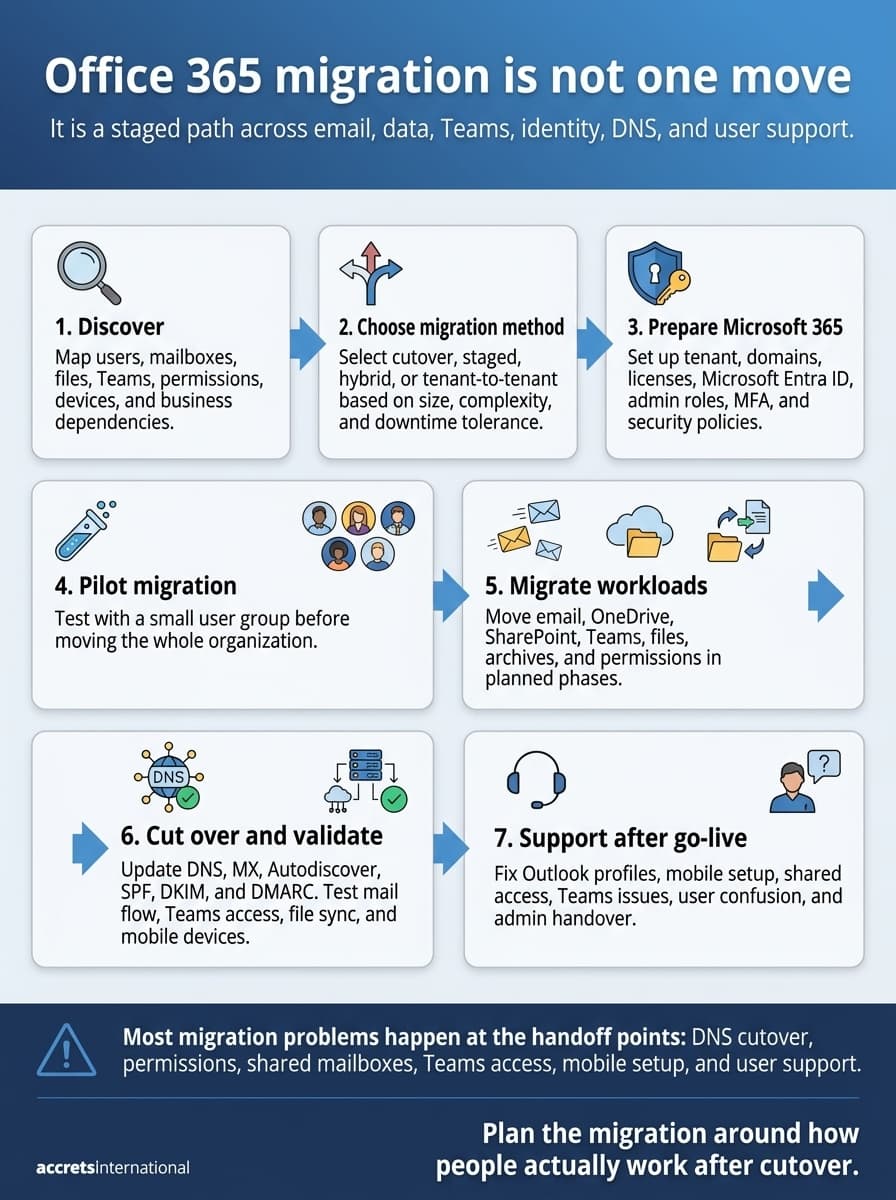
How Office 365 migration works step by step
Office 365 migration should follow a controlled sequence. The exact steps vary by environment, but most successful projects follow this pattern.
Step 1. Discover the current environment
Start by mapping users, mailboxes, file stores, Teams usage, permissions, applications, devices, and business dependencies. This step should also identify old data, inactive users, oversized mailboxes, unsupported clients, and risky permission structures.
Skipping discovery usually creates problems later. A missed shared mailbox or broken permission group can cause more disruption than the migration itself.
Step 2. Choose the right migration method
The migration method depends on the source system, user count, data volume, identity setup, and downtime tolerance. A small company may be able to cut over in one planned window. A larger organization may need a staged or hybrid migration.
The right method should fit the business, not the other way around.
Step 3. Prepare the Microsoft 365 tenant and identity
Tenant preparation includes domains, licenses, Microsoft Entra ID, admin roles, groups, conditional access, multifactor authentication, and security settings. This is also where the team confirms naming, governance, and access rules.
Identity matters because users do not experience migration as a technical project. They experience it as whether they can sign in and work.
Step 4. Run a pilot migration
A pilot migration moves a small group first. This test should include different user types, such as executives, mobile users, shared mailbox owners, heavy Teams users, and people who depend on shared files.
The pilot checks email flow, calendar behavior, OneDrive access, Teams functionality, permissions, support procedures, and user instructions.
Step 5. Migrate email, files, and Teams in phases
For most businesses, phased migration reduces risk. The team can move priority groups first, validate the results, then continue department by department or workload by workload.
This is where professional IT implementation services can make a real difference. Migration is not just a setup task. It is a controlled change to how the business operates.
Step 6. Cut over DNS and validate service
DNS changes usually include MX records, Autodiscover, SPF, DKIM, and DMARC. These affect mail routing, deliverability, and how clients connect to the new service.
After cutover, validation should happen immediately. Test inbound and outbound mail, shared mailbox access, calendars, mobile devices, Teams, OneDrive sync, and SharePoint permissions.
Step 7. Support users after go-live
The migration is not finished when the last mailbox moves. Users still need support for Outlook profiles, mobile setup, missing shortcuts, Teams access, shared folders, and changed workflows.
A clean post-migration support window can prevent a technically successful migration from feeling chaotic to the business.
How email, data, and Teams migration differ
Email, files, and Teams behave differently during migration. Treating them as one generic data move is a mistake.
| Workload | What moves | Common risk | What to validate |
| Mailboxes, calendars, contacts, archives, shared mailboxes | Lost mail, broken calendars, DNS errors | Mail flow, mobile access, shared mailbox permissions | |
| Files and data | OneDrive files, SharePoint libraries, folders, metadata, permissions | Broken access, duplicate content, missing files | File counts, permissions, folder structure, sync behavior |
| Teams | Teams, channels, members, files, collaboration settings | Lost context, broken team structure, access issues | Team membership, channel files, permissions, user access |
Email is usually the most visible part because everyone notices when mail stops working. Files and permissions often carry more hidden complexity. A file can move successfully but still fail the business if the wrong people can access it or the right people cannot.
Teams migration needs special attention because Teams is not just chat. It connects people, files, channels, meetings, permissions, and daily work habits. If your migration includes collaboration redesign, Accrets’ page on online collaboration tools gives useful context for how Teams fits into the wider workplace stack.
Which Office 365 migration method fits your environment?
There is no single best migration method. The right choice depends on the current environment and the level of coexistence the business needs during the move.
| Migration method | Best for | Downtime risk | When it makes sense |
| Cutover migration | Smaller, simpler environments | Medium | When all users can move in one planned window |
| Staged migration | Mid-size or phased migrations | Lower | When departments need to move in batches |
| Hybrid migration | On-prem Exchange plus Microsoft 365 coexistence | Lower if planned well | When users must coexist across cloud and on-prem systems |
| Tenant-to-tenant migration | Mergers, acquisitions, restructuring | Medium to high | When moving users and data between Microsoft 365 tenants |
Cutover migration can work well when the environment is simple and the downtime window is acceptable. Staged migration is better when the business needs controlled movement over time. Hybrid migration is useful when on-premise Exchange and Microsoft 365 must coexist. Tenant-to-tenant migration is common during mergers, acquisitions, divestitures, or regional restructuring.
The provider should explain why a method fits your environment. If the recommendation sounds generic, the assessment is probably not deep enough.
Office 365 migration services compared to migration tools
Migration tools are useful, but they are not the same as migration services. A tool can move data. A provider should manage the outcome.
| Option | Best for | Strength | Limitation |
| Microsoft-native tools | Simple email-focused migrations | Official Microsoft-supported paths | Requires internal planning and technical execution |
| Third-party tools | Larger or more complex workload moves | Automation and broader workload support | Still needs expert configuration and validation |
| End-to-end provider | Businesses that need planning, execution, cutover, and support | Reduces operational burden and downtime risk | Requires clear scope and provider accountability |
If your internal team has the time, experience, and documentation discipline, native tools may be enough for a simple move. If the environment involves Teams, SharePoint, complex permissions, hybrid identity, multiple regions, or tight downtime windows, the service layer becomes more important.
This is where managed IT services can matter after migration. Microsoft 365 still needs administration, security review, user support, and ongoing governance once the move is complete.
How to minimize downtime during Office 365 migration
Minimal downtime comes from planning, sequencing, and validation. It does not come from hoping the cutover goes smoothly.
Use these controls to reduce disruption:
- Build a migration inventory before scheduling cutover
- Clean up stale users and inactive mailboxes
- Run pilot migration before full rollout
- Stage mailboxes and files by business priority
- Schedule DNS cutover around actual usage patterns
- Prepare rollback and escalation paths
- Validate mail flow and Teams access immediately after cutover
- Keep user communications clear and timed
The most disruptive migrations usually fail in ordinary places: incomplete inventories, poor DNS timing, unclear user instructions, forgotten shared mailboxes, or permissions nobody checked.
Accrets treats Microsoft 365 migration like infrastructure migration: scoped, staged, tested, and supported with a rollback plan. That approach matters for businesses where email, Teams, and shared files are part of daily operations, not optional tools.
If your migration carries continuity risk, connect the plan to your wider business continuity planning and disaster recovery work. A Microsoft 365 cutover should not sit outside your continuity thinking.
What should an Office 365 migration provider handle?
A good provider should do more than run a migration tool. They should take responsibility for planning, execution, validation, communication, and support.
Use these questions when evaluating a provider:
- Can they assess email, files, identity, Teams, security, and DNS together?
- Do they explain which migration method fits your environment?
- Do they provide a realistic cutover plan?
- Do they run pilot testing?
- Do they validate data after migration?
- Do they support users after go-live?
- Do they understand hybrid, private cloud, and on-premise dependencies?
- Do they document risks, rollback paths, and ownership?
The provider should also be honest about trade-offs. Not every organization needs a complex hybrid model. Not every migration requires the same tools. Not every workload should move at the same time.
For companies that need post-migration operational help, Accrets’ guide to business IT support in Singapore explains what ongoing support should cover. If you are comparing managed providers more broadly, this guide to managed service providers in Singapore can help frame the evaluation.
Why Accrets for Microsoft 365 migration and managed services?
Accrets is a Singapore-based infrastructure and managed IT services partner for businesses that need Microsoft 365 migration handled with the same discipline as broader cloud and infrastructure change.
That matters because Microsoft 365 rarely sits alone. Email connects to identity. Teams connects to files. User access connects to security policies. Remote work depends on network reliability, endpoint readiness, and support processes.
Accrets supports Microsoft 365 migration and managed services across:
- End-to-end Microsoft 365 migration
- Enterprise email setup and configuration
- Microsoft Teams and collaboration deployment
- Integration with on-premise and hybrid cloud environments
- Ongoing Microsoft 365 administration and support
The Accrets approach is consultative, not package-led. The team scopes the environment, identifies risk, plans the migration path, stages the work, and supports the business after go-live. That fits organizations that want a technical partner, not just a reseller or a one-time migration vendor.
For a broader view of how Microsoft 365 fits into business applications, see Accrets’ enterprise applications solutions. If your Microsoft 365 project is part of a wider infrastructure program, Accrets also supports organizations as a managed cloud service provider.
Get your Office 365 migration right before cutover
A successful Office 365 migration depends on planning, sequencing, testing, and post-migration support. The technical move matters, but so does the business experience after cutover, when users expect email, files, Teams, calendars, and mobile access to work without confusion.
Talk to an infrastructure specialist at Accrets to assess your current environment, migration scope, downtime risk, and support needs.
Talk to an infrastructure specialist
The right Office 365 migration services partner should help you move with minimal disruption, validate the result, and leave your team with a Microsoft 365 environment that is ready to operate, support, and improve.

Dandy Pradana is an Digital Marketer and tech enthusiast focused on driving digital growth through smart infrastructure and automation. Aligned with Accrets’ mission, he bridges marketing strategy and cloud technology to help businesses scale securely and efficiently.